How to Design a Branded QR Code (And Keep It Scannable)
Published on June 28, 2026 · 5 min read
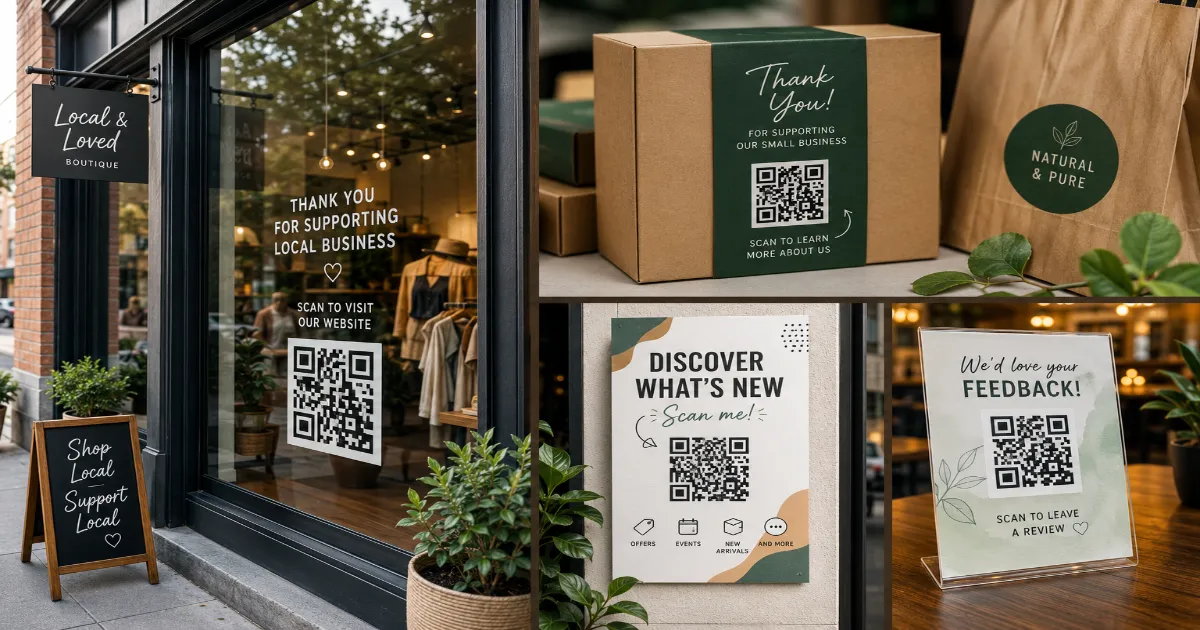
For years, marketers hated QR codes. Art directors despised them. They were seen as ugly, utilitarian black-and-white warts that ruined the aesthetic of beautiful posters, elegant packaging, and sleek business cards.
That era is over. Today, a QR code doesn't have to look like a generic tech stamp. You can inject your brand's DNA directly into the matrix. You can modify the colors, soften the shapes, and proudly drop your company logo right in the center.
But there is a catch—a very dangerous one.
A QR code is, fundamentally, a piece of machine-readable mathematics. When designers treat it purely as a canvas for artistic expression, they inevitably break the math. The result is a gorgeous, on-brand piece of modern art that zero smartphone cameras can actually scan.
In this guide, I will show you how to walk the tightrope between beautiful branding and flawless scannability. Here is how to design a custom code that actually works.
The Science of Scannability: What the Camera Sees
Before you start changing colors, you need to understand how a smartphone reads a code. The camera is not looking at your logo. It is looking for two things: contrast and positioning.
First, it looks for the three large squares in the corners (called "Finder Patterns" or "Eyes"). These tell the camera exactly where the code is, how big it is, and what angle it is tilted at.
Next, the software converts the image to strict black and white. It relies on the harsh contrast between the dark data modules and the light background to decode the binary information. If your design choices confuse the camera during either of these two steps, the scan will fail instantly.
Mastering Colors: The Contrast Rule
The easiest way to brand a code is to change the color. Black is boring. Deep navy blue, rich crimson, or forest green looks highly professional.
However, you must obey The Rule of High Contrast.
Smartphone sensors need a distinct separation between the foreground (the data blocks) and the background. If you make the data blocks light gray, and put them on a white background, the camera will not see them.
The Inversion Trap:
The most common and devastating design mistake is color inversion. Designers often try to place a white QR code on a pitch-black or dark-colored background because it looks sleek and minimalist.
Do not do this.
While the newest flagship iPhones might occasionally decode an inverted code, the vast majority of older Android and iOS devices physically cannot process them. The software is explicitly trained to look for dark squares on a light background. Always keep the code darker than the canvas behind it.
Adding Your Logo: The Right Way
Placing your logo in the center of the code is the ultimate trust signal. It tells the user exactly who they are interacting with before they even scan. But you must do it safely.
1. Maximize Error Correction:
As discussed in our previous guides, putting a logo over the code destroys data modules. Before you add a logo on the QRInsec generator, ensure your Error Correction level is set to High (Level H). This creates the necessary mathematical redundancy to allow the logo to sit there.
2. Size Matters (Keep it Small):
Your logo should never cover more than 20% to 25% of the total surface area of the code. If it gets any larger, it will overwhelm the error correction, and the code will break.
3. Never Cover the Eyes:
The three large positioning squares in the corners are sacred territory. Your logo must stay in the center or along the bottom edge, well away from the finder patterns. If you obstruct even a sliver of those corner eyes, the code is dead.
4. Use a Solid Background for the Logo:
Do not just drop a transparent PNG logo over the messy data squares. The visual clutter will confuse the camera. Create a solid shape (like a white circle or a soft square) in the center of the QR code, and place your logo cleanly inside it.
Modifying Shapes: Dots vs. Squares
Standard QR codes use sharp, rigid squares. Modern generators allow you to soften the design by changing the data modules into circles, rounded rectangles, or even custom diamond shapes.
This is a fantastic way to match your brand's typography. If your company uses soft, friendly, rounded fonts, a QR code built with circular dots feels much more cohesive than harsh squares.
However, be cautious with extreme shapes (like stars or crosses). If you remove too much "weight" from the data modules, the camera struggles to recognize them as solid blocks of data. Softened squares and circles are the safest custom choices.
The Non-Negotiable "Quiet Zone"
Designers love to push boundaries. They want the graphics of the flyer to bleed right up to the edge of the QR code.
This will ruin your code every time.
Every QR code requires a "Quiet Zone"—a clear, unprinted border surrounding the entire code. This empty space tells the camera where the chaotic graphics of your poster end and the structured data of the QR code begins.
The quiet zone should be at least four modules wide (about the width of one of the corner eyes). If you violate the quiet zone with text, borders, or images, the camera cannot isolate the code to scan it.
Frequently Asked Questions (FAQ)
Can I use a gradient color on my QR code?
Yes, but proceed with caution. A gradient that fades from dark blue to dark purple is fine. A gradient that fades from dark blue to very light yellow is dangerous, because the yellow section may not have enough contrast against a white background to be readable.
Should I use a JPG, PNG, or SVG for my custom code?
If you are putting the code on digital screens or standard office printouts, a high-res PNG is perfect. If you are sending the design to a professional printing press for billboards, vehicle wraps, or high-end packaging, always export it as an SVG. SVGs are vector files that can be scaled infinitely without losing quality.
Does a custom design cost extra to print?
No. A printer treats a custom-colored QR code just like any other graphic on your flyer. The complexity of the image does not change the printing cost.
How do I know if I over-designed it?
The Two-Device Test. Before you finalize the design, scan it with a brand new smartphone, and then borrow a 4-year-old budget smartphone and scan it again. If the older phone struggles for more than three seconds to read it, your design is too complex. Dial it back.
Stand Out Safely
A branded QR code transitions your physical assets from looking cheap to looking premium. It builds trust, reinforces your brand identity, and drastically increases user engagement.
But remember, function must always precede form. A beautiful code that does not scan is just a waste of ink. By maintaining high contrast, respecting the quiet zone, and managing your logo size, you can create stunning, on-brand codes using QRInsec that work flawlessly every single time.
Create your QR code for free
No sign up, no limits — generate and download in seconds.
Open the generator