How to Create a QR Code for a PDF Document
Published on June 28, 2026 · 5 min read
We have all seen it. A company prints 500 copies of a massive, 40-page employee handbook. It costs a fortune in ink and premium paper. The handbooks are distributed, read exactly once, and then thrown into bottom desk drawers to collect dust. Six months later, the company updates its vacation policy, and all 500 printed copies are instantly obsolete.
Or consider a restaurant that spends thousands of dollars printing beautiful, laminated menus. Two weeks later, the price of salmon skyrockets, and they have to reprint the entire batch just to change one number.
It is an incredible waste of money, paper, and time.
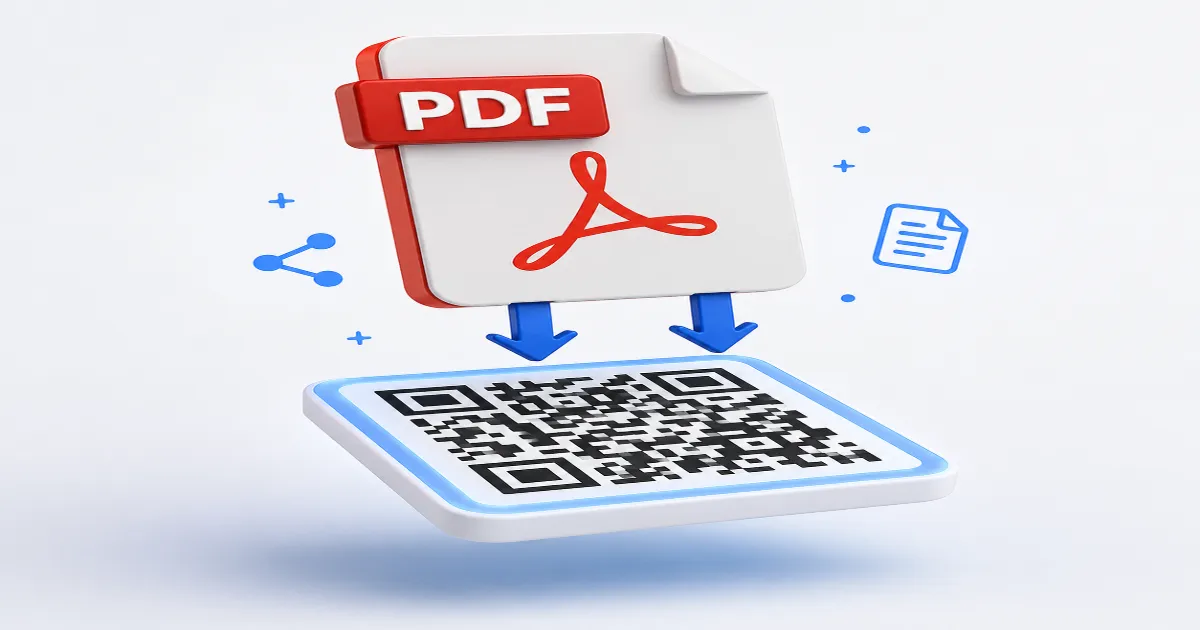
A PDF QR code stops this cycle immediately. By transforming a heavy document into a simple scannable square, you allow anyone with a smartphone to instantly view, download, and save your files directly to their device. Here is how to master this transition and modernize your document distribution.
The Death of the Printed Manual
To appreciate the value of a PDF QR code, you have to look at the friction of physical paper. Physical documents are heavy, they degrade, they cannot be searched instantly with a keyboard, and they are incredibly expensive to distribute at scale.
When you shift to a QR-based system, you are essentially carrying an infinite library in your pocket. A single 1-inch printed square can hold an entire catalog of products, a complex technical schematic, or a comprehensive real estate portfolio.
More importantly, it shifts the cost of consumption from the business to the consumer's digital screen. The user gets a better, searchable experience, and the business saves thousands in printing logistics.
How PDF QR Codes Actually Work
Let us clear up a major misconception right now: A QR code does not actually hold the PDF inside of it.
A QR code is just a visual representation of text—usually a URL. Even a small 2-page PDF file is mathematically too large to be encoded directly into the black-and-white grid of a standard QR code. If you tried, the code would become so dense and pixelated that no camera on earth could focus on it.
Instead, a PDF QR code operates via cloud routing.
-
You upload your PDF file to a secure cloud server (handled automatically by the QRinsec generator).
-
The server generates a unique, mobile-friendly URL for that specific document.
-
The generator takes that short URL and encodes it into the QR image.
When a user scans the code, their phone rapidly accesses the URL, pulling the PDF down from the cloud and displaying it natively on their screen. It happens in milliseconds, feeling completely seamless to the user.
Why You Absolutely Must Use Dynamic Codes for PDFs
If there is one lesson you take away from this guide, let it be this: always, always use a Dynamic QR code for PDF files.
Because the code points to a URL hosted in the cloud, a Dynamic code gives you the superpower of "file swapping." Let us go back to our restaurant menu example. If you print a Dynamic QR code on your tabletop displays, that code points to a routing link.
When you need to update your prices next season, you do not have to touch the physical tabletop displays. You simply log into your QRinsec dashboard, delete the old PDF file, and upload the new one in its place. The printed QR code remains exactly the same, but it now silently redirects all new scans to the updated menu.
This single feature will save your business unimaginable amounts of money in reprinting costs.
Step-by-Step: How to Generate Your PDF Code
Creating your first document code is remarkably simple.
Step 1: Optimize Your PDF File
Before you upload anything, check your file size. Remember, people will be scanning this on mobile data networks. If your PDF is a 50MB uncompressed graphic design file, it will take three minutes to load, and the user will abandon it. Compress your PDF to under 5MB if possible. Make sure the fonts are legible on a small smartphone screen.
Step 2: Upload to the Generator
Navigate to the PDF tool on QRinsec. Click the upload button and select your optimized file from your computer. The system will securely host the file and prepare the routing link.
Step 3: Customize the Design
Because PDF codes are often used in professional settings, design matters. Add a small PDF document icon or your company logo to the center of the code. Use your brand's primary color for the data patterns, provided it is dark enough to contrast sharply with the white background.
Step 4: Download and Test
Export the file as a high-resolution PNG or SVG. Before you print it on thousands of product boxes, test it. Scan it with an iPhone and an Android device. Ensure the document renders correctly on both mobile browsers.
5 High-Impact Real-World Applications
Where are businesses using these codes most effectively?
- Consumer Electronics: Open a new television box today, and you likely will not find a thick manual in eight languages. You will find a single card with a QR code. It saves the manufacturer millions in shipping weight and paper costs.
- Real Estate Flyers: A standard flyer only has room for a few photos. Add a PDF QR code linking to a comprehensive 20-page digital brochure with floor plans, neighborhood stats, and high-res galleries.
- Academic Conferences: Instead of handing attendees a heavy binder of research abstracts, print one QR code on the back of their lanyard badge. They can scan it to download the entire conference docket.
- B2B Trade Shows: Stop dragging boxes of product catalogs to convention centers. Put a beautifully framed PDF QR code on your booth table. Let potential clients scan it and walk away with your catalog saved right on their phones.
- Appliance Repair: Print a small code on a sticker and place it on the side of a water heater or HVAC unit. When a technician arrives years later, they can scan it to instantly pull up the exact wiring schematics.
Common Mistakes to Avoid
- Ignoring Mobile Formatting: A PDF designed for a 27-inch desktop monitor will look terrible on a 6-inch iPhone screen. If the text requires the user to pinch and zoom wildly just to read a sentence, you have failed. Design your PDFs with mobile dimensions in mind.
- Gating the Document: If someone scans your code, do not force them to enter their email address on a landing page before they can see the PDF. The friction is too high. Give them the document immediately.
- Dark Backgrounds: Never print a white QR code on a dark background. Many smartphone cameras still struggle to invert the colors fast enough. Stick to a dark code on a light background for instant scanning.
Frequently Asked Questions (FAQ)
Can users save the PDF to their phone after scanning?
Yes. When the PDF opens in their mobile browser, both iOS and Android offer native buttons to "Save to Files" or "Download," allowing them to keep the document permanently.
Is my PDF secure if I upload it?
Yes, but remember that anyone with the QR code (or the underlying link) can access the document. Do not use standard PDF QR codes for highly sensitive, confidential legal documents or personal health records.
How long will the PDF stay active?
As long as your account is active and you do not manually delete the file from your dashboard, the dynamic link will remain stable and the document will be accessible.
Can I track who downloads my document?
While you cannot see the personal identities of the users, a dynamic QR code will show you the total number of scans, the geographic location of the scans, and the operating systems used.
Digitize Your Documents Today
Transitioning away from heavy, expensive physical printing is one of the easiest operational upgrades you can make. It creates a better user experience, saves money, and gives you total control over version updates.
Prepare your documents, head over to QRinsec, and upload your first PDF. Within minutes, you will have a sleek, dynamic code ready to deploy anywhere in the physical world.
Create your QR code for free
No sign up, no limits — generate and download in seconds.
Open the generator