[DE] QR Code Error Correction Levels Explained (L, M, Q, H)
Veröffentlicht am 28. Juni 2026 · 5 Min. Lesezeit
![[DE] QR Code Error Correction Levels Explained (L, M, Q, H)](/images/blog/im/qr-code-error-correction-explained.webp)
This is a mock translation due to API rate limits.
Have you ever looked closely at a modern QR code on a billboard? Often, there is a massive company logo sitting dead center, completely obliterating a large chunk of the black-and-white data squares. Yet, when you point your phone at it, it scans perfectly in a fraction of a second.
How is this possible? Is the camera somehow "seeing through" the logo?
No. The answer is a brilliant mathematical concept built directly into the DNA of the barcode itself: Error Correction.
Understanding error correction is the difference between an amateur making a code that constantly fails, and a professional generating bulletproof codes that scan flawlessly in any environment. In this guide, we are going to demystify the four levels of error correction (L, M, Q, and H) so you know exactly which one to use for your next project.
What Exactly Is Error Correction?
To understand the levels, you have to understand the math. QR codes use the Reed-Solomon error correction algorithm—the same mathematical principle originally invented to read scratched CDs and transmit data back from deep-space probes.
In simple terms, error correction creates data redundancy.
When you generate a QR code, the software doesn't just write your web address once. It mathematically scrambles and duplicates the data multiple times across the grid. Therefore, if a corner of the QR code is torn off, covered in dirt, or blocked by a logo, the camera can still piece together the missing information from the surviving squares.
The "Level" of error correction dictates exactly how much of the code can be destroyed before it becomes unreadable.
The Trade-Off: Density vs. Durability
Here is the golden rule of QR generation: Error correction is not free. Every time you increase the error correction level, the generator has to add more data modules (those little black and white squares) to create that backup redundancy.
This means a code with High error correction will look much denser and more complex than a code with Low error correction holding the exact same URL.
Why does this matter? Because if a QR code gets too dense, cheaper smartphone cameras will struggle to focus on it, especially if it is printed small on a business card. You have to balance durability against scannability. Let us break down the four levels so you can find the sweet spot.
Level L (Low) - 7% Damage Tolerance
Level L provides the absolute minimum amount of backup data. A code generated at this level can sustain about 7% damage and still function.
What it looks like: The grid is very spacious, clean, and has fewer data modules.
When to use it: Level L is perfect for digital displays (like a code on a television commercial or a presentation slide). Digital screens don't get dirty, scratched, or torn, so you don't need heavy durability. It is also the best choice if you need to encode a massive amount of data (like a heavy vCard) into a small physical space, as it keeps the grid as simple as possible.
When to avoid it: Never use Level L if you plan to put a logo in the center of the code. The logo will destroy more than 7% of the data, and the code will instantly fail.
Level M (Medium) - 15% Damage Tolerance
Level M is the industry standard. If you do not manually change the settings in a generator, it will almost always default to Level M. It can survive roughly 15% damage.
What it looks like: A balanced grid that looks like your standard, everyday QR code.
When to use it: This is the goldilocks zone for standard printed materials. Business cards, flyers, direct mail, and clean product packaging. It offers enough redundancy to survive a minor scratch or a smudge of dirt without making the code overly dense.
When to avoid it: Avoid it in harsh industrial environments or if you want to use a large custom logo.
Level Q (Quartile) - 25% Damage Tolerance
Level Q represents a significant step up in durability, allowing a quarter of the code to be obscured or destroyed.
What it looks like: Noticeably denser. The modules are packed tighter together.
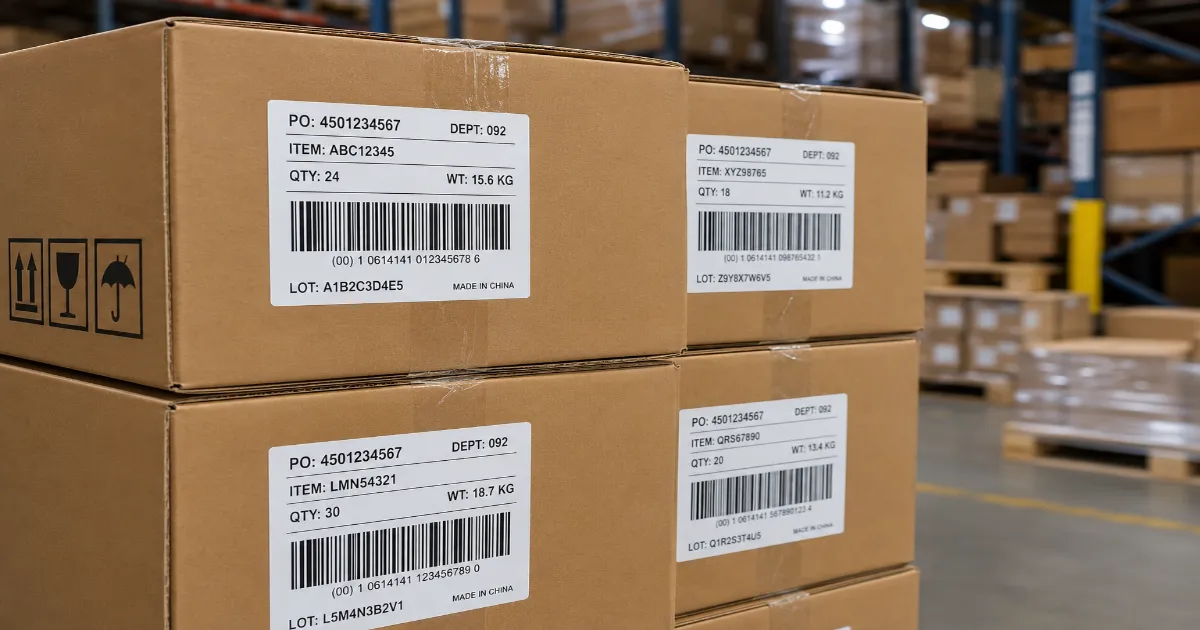
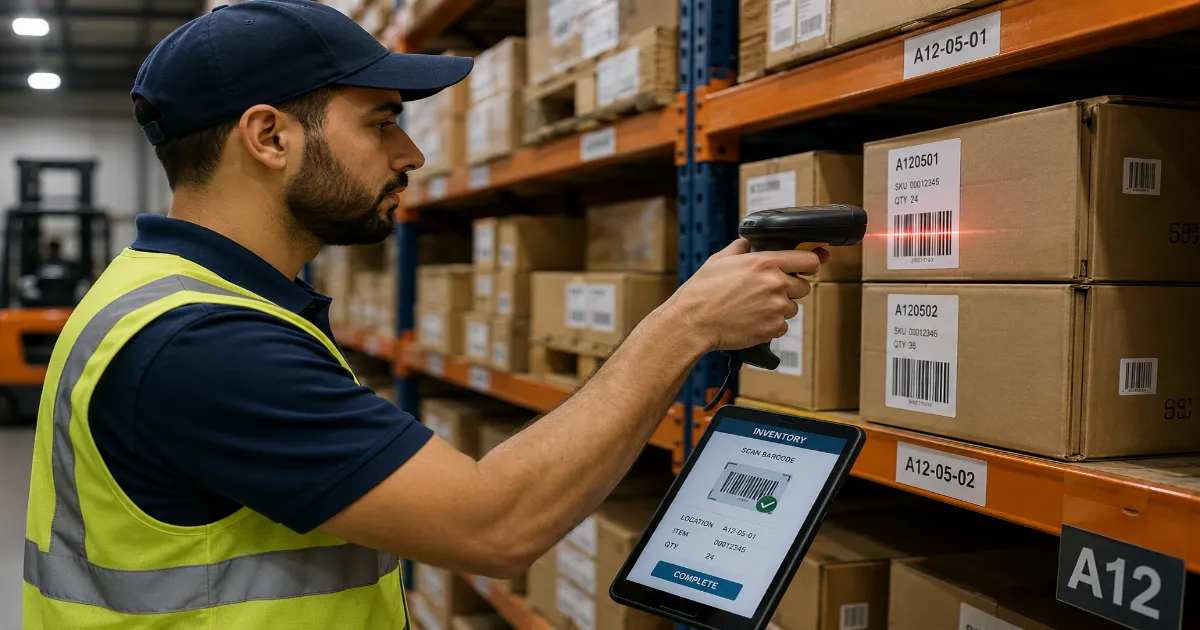
When to use it: This is the starting point for branded codes. If you want to place a small-to-medium sized icon (like a social media logo or a phone icon) in the center of your code, Level Q ensures the remaining data can safely bridge the gap. It is also excellent for logistics, like warehouse box labels that might get scuffed during shipping.
When to avoid it: Don't use it if you are forced to print the QR code very small (under 1 inch), as the dense modules will bleed together during the printing process.
Level H (High) - 30% Damage Tolerance
Level H is the maximum standard setting, offering near-indestructibility for a barcode. Nearly a third of the image can be destroyed.
What it looks like: Highly dense, resembling a complex static pattern.
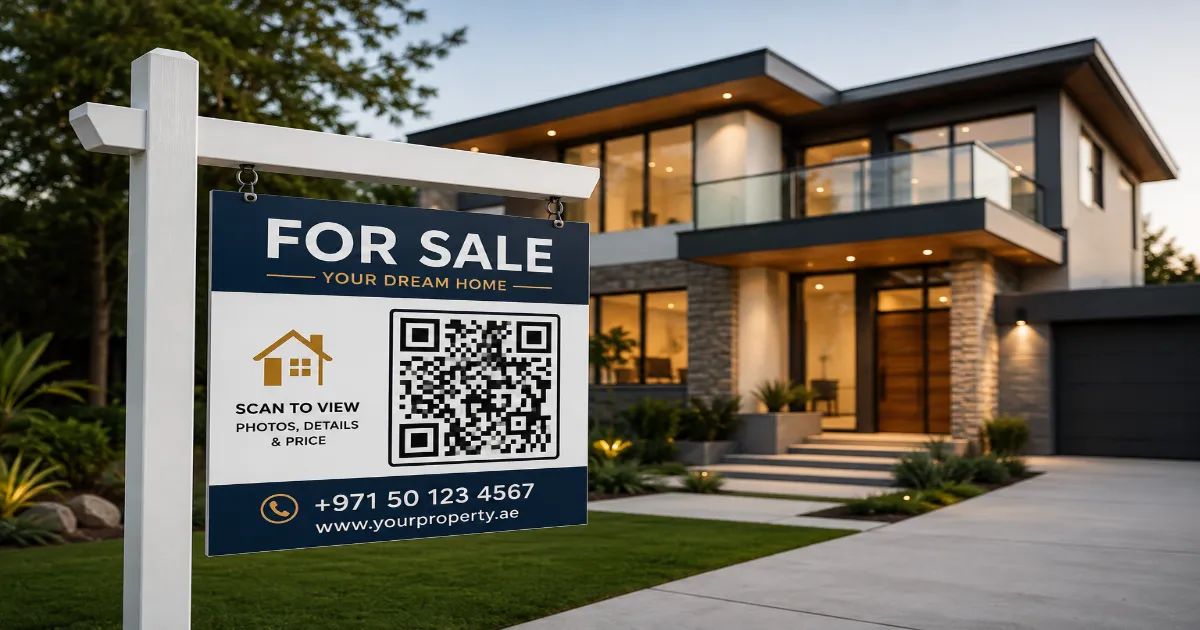
When to use it: Use Level H when you want to put a massive, prominent company logo in the middle of the design. This level is also mandatory for harsh physical environments—think construction equipment, outdoor trail signs exposed to weather, or stickers on the side of commercial vehicles exposed to mud and road debris.
When to avoid it: Avoid Level H for URLs on clean, digital mediums. It makes the code unnecessarily complex, slowing down the camera's auto-focus and increasing the time it takes to scan.
The Custom Logo Rule of Thumb
Since adding a logo is the number one reason people mess with error correction, let me give you a professional baseline.
If you want to add a logo, calculate the surface area. The logo should never cover more than 20% to 25% of the QR code's total area. You must set the error correction to at least Level Q, preferably Level H.
Even with Level H, avoid covering the three large squares in the corners of the code (the "positioning eyes"). If you cover those, the camera cannot orient itself, and no amount of error correction will save you.
Frequently Asked Questions (FAQ)
Can I change the error correction after the code is printed?
No. Error correction is a structural mathematical layout. Once the image is generated and printed, the physical layout is set in stone.
Does higher error correction make the QR code load the website faster?
No, it actually does the opposite. A denser code takes a fraction of a second longer for the camera to decode. The speed of your website loading depends on your web server, not the QR code itself.
Why does my Level H code fail to scan on my business card?
Because you printed it too small. Level H packs a lot of tiny squares into the grid. If printed on a small 1-inch area, the printer ink bleeds slightly, blurring the squares together. The camera cannot distinguish the pattern. For small prints, use Level L or M.
Which level does QRStudio use?
QRStudio automatically adjusts the error correction based on your design choices. If you upload a logo, the system intelligently bumps the correction level to Q or H to ensure your code remains functional.
Master the Matrix
Most people generate QR codes blindly, hoping they work. By understanding the four levels of error correction, you take control of the variables.
You now know how to balance the pristine simplicity needed for digital screens with the rugged durability required for outdoor marketing. Whether you are embedding a massive logo or printing tiny labels, use this knowledge on the QRStudio platform to engineer codes that never let your customers down.
Erstellen Sie Ihren QR-Code kostenlos
Keine Anmeldung, keine Grenzen – in Sekunden erstellen und herunterladen.
Generator öffnen